 Have been looking for ways to password protect the folder in Mac OS X. By default, there is a tool that allow you to password protect folder in Mac OS X. I guess not much ppl know how to password protect folder in Mac OS X.
To password protect folder in Mac OS X, follow the steps below:-
Advertisements
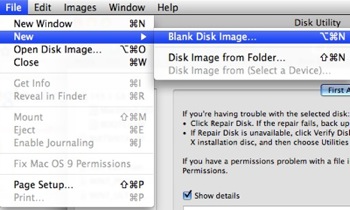
- Go to Finder -> Application -> Utilities -> Disk Utility
- File -> New -> Blank Disk Image -> type in a name for the image at “Save As”
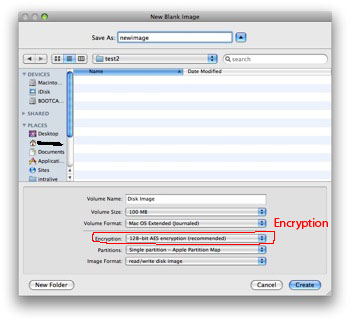
- Choose “128-bit AES encryption (recommended)” at the “Encryption” field and click “Create” button
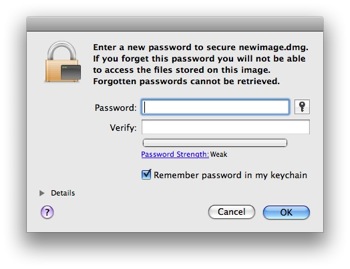
- Disk Utility will prompt you to set a password, just type in your password and click “OK”
- Disk Utility will create a .dmg disk image with password protection. Once done you can double click on the new .dmg file then key in the password. The file will open as a drive, and now you can start dragging your files and folders into the image.
Related posts:
How to delete all .svn folder in Linux / Mac?
Mac: Change print screen file location
How to send message to syslog server?
How to enable screen saver password in Mac OS X?
How to change Dock icon size in Mac?
Mac RDP to Win 8.1 error - Remote Desktop Connection cannot verify the identity of the computer that...
How to crop image in Mac OS X
How to reload .bash_profile in Linux or Mac?
Share this with your friends:-

can i do this on my macbookpro?
What if I don’t want the dmg anymore how do i get the space i used for the dmg back
thankx for the help……………
@Mike
You forgot to cross off “add to keychain” when you set the password for the disk image.
That´s why it opens without you having to type a password.
this creates two separate icons, one is a disk image, like you said, and the other has the .dmg extension, and appears like a document. i can drop things in the disk image, but not in the .dmg, and the disk image can be opened without a password.
maybe i’m missing something
This is useful for some situations, but I’m looking to password protect a folder that I can then add things to or modify the contents of the folder. Using the disk image method I’d have to make a new disk image every single time I modify the contents.
Good idea but should you not uncheck the “Remember password in my keychain” box because that can be read.