 By default, Mac has disable the file sharing feature. Just few clicks away, it will enable file sharing feature in your Mac OS X. However, Mac has it’s own protocol for file sharing. To enable file sharing between Mac and Windows machine, you need to turn on some features.
To enable file sharing in Mac os X, follow the steps below:-
Advertisements
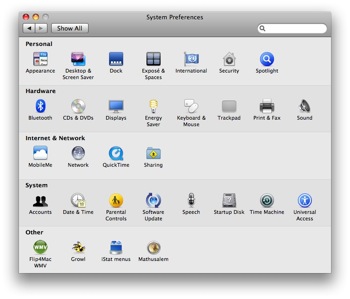
- Click on Apple -> System Preferences -> Sharing
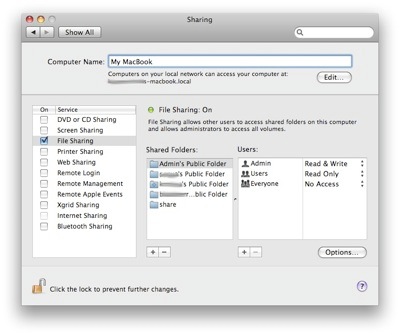
- Tick the “File Sharing” and highligt your public folder under the “Shared Folder” and make sure user “Everyone” has “Read Only” or “Read & Write” Privilege
- Click on “Options” button, window will popup, tick “Share files and folders using SMB” and click “Done”
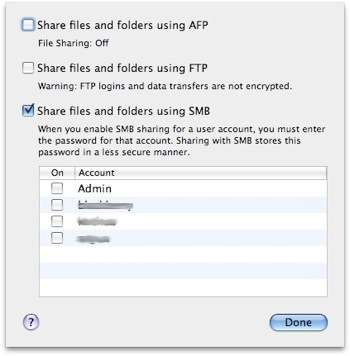
*** Make sure you tick the SMB or else window user are not able to connect to this machine. - Now, your window machine should be able to connect to this Mac machine.
Related posts:
How to setup SSH without password
How to join hjsplit file in Mac OS X
Arrow key not working in vi / vim - Mac OS
How to merge pdf file in Mac OS X using Preview
Mac: how to disable print screen window shadow
How to disable notification center in Mac OS X
How to open password protected zip in Mac OS X
How to split compressed file into smaller files in Linux / Mac
Share this with your friends:-
