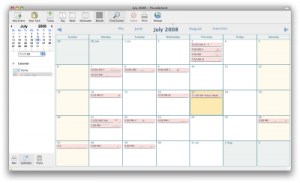
 Dedicated to those who want to add Calendar in Thunderbird. If u r running Thunderbird and want to have an integrated Calendar system like Ms Outlook, then Lightning Calendar is the solution. You can add Lightning Calendar module to Thunderbird and the steps is just easy.
Below is the step to add Lightning Calendar to Thunderbird:-
- Download Lightning Calendar module from Thunderbird Add-ons homepage
- Once download, start your Thunderbird -> Tools -> Add Ons
- Under Extensions Click “Install” button and look for the lightning calendar module you just downloaded.
- Wait for the count down, and click “Install”
- Now restart your Thunderbird
- Done, you have just add Lightning calendar to Thunderbird
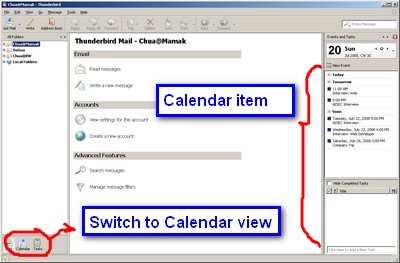
Originally, Lightning calendar is ported from Sunbird Calendar as a add-on for Thunderbird. The primary goal of Lightning is to provide a pleasant and productive user experience for both email and calendaring tasks, largely independent of specific competitors’ product plans (from Mozila Wiki).
The best part about Lightning Calendar is, it’s able to sync your calendar with Google Calendar (with third party add-on support). I’m going to teach u how to sync your Lightning Calendar with Google Calendar in the coming post. Stay tuned.
I’ve downloaded Lightning three times so far and it just doesn’t show up under Tools – Add-ons – Extensions.
I’m trying to get Thundebird back to as it was, Thunderbird plus integrated calendar, until I installed Thunderbird 5.
For Ubuntu 9.04 users:
Do not install Lightning 0.9 by downloading the xpi-file and from Thunderbird Add-ons site, Instead use the synaptic or
sudo apt-get install lightning-extension
For details view:
http://magnus-k-karlsson.blogspot.com/2009/05/thunderbird-lightning-09-on-ubuntu-904.html
Same problem for me, Using Ubuntu 9.04, can’t add task or event. So it’s not much use.
Ed Sapala: hmmm very weird, seems find for me. may i know what Linux distribution u r using? ubuntu? red hat? suse?
I installed Lightening for Linux and am able to view the calendar function, but the ‘add event’ and ‘add task’ are greyed out and nothing I do will allow me to add an event. When I right click on the ‘calendar’ menu item I get a customize screen, then these menu items do light up but when I close the customize screen, the ‘add event’ item is again greyed out
[…] How to sync Google Calendar with Thunderbird By Techie Corner « How to add calendar in Thunderbird – Lightning Calendar add-on […]