Received a call few days ago from my client saying that their PC now load “XP Antivirus Protection” whenever windows start. I’ve no idea what “XP Antivirus Protection” is at that moment. After googling for while, i found out this “XP Antivirus Protection” is another “AntiSpywareShield” or “virprotect” a like software. Generally speaking this “XP Antivirus Protection” is a fake anti virus software.
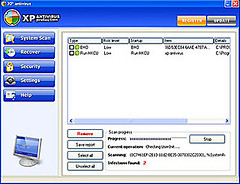
So, to remove “XP Antivirus Protection” you need to go thru the steps below:-
Advertisements
I found an easier way to remove XP Antivirus Protection, please read it at
How to remove antivirus 2008 and 2009
How to remove antivirus 2008 and 2009
- Go to Start -> Run -> type “cmd” and enter
- Go to the command prompt and enter this 2 command “regsvr32 /u shlwapi.dll” and “regsvr32 /u wininet.dll” to unregister the dll
- Right Click on your taskbar and select “Task Manager” and go to “Processes” tab
- Look for XPAntivirus.exe and XPAntivirusUpdate.exe then right click on it and click on “End Process” one by one.
You must make sure there is no more XPAntivirus.exe and XPAntivirusUpdate.exe process running
- Now u go to Start -> Search or Start -> Search -> For Files or Folders
- Then type the word below one by one at the “All or part of the filename” and click Search, if the file is found, right click on the file and click Delete:-
- shlwapi.dll
- wininet.dll
- XP antivirus
- XP Antivirus 2008.lnk
- XPAntivirus.lnk
- XPAntivirus.exe
- XPAntivirusUpdate.exe
- XPAntivirus on the Web.lnk
- XPAntivirus.url
- Uninstall XP Antivirus 2008.lnk
- Uninstall XPAntivirus.lnk
- Once u finish remove all the files above, you now go to Start -> Run and type regedit and enter
- Go to “HKEY_USERS\Software\” and delete “XP antivirus“
- Now restart your system. The “XP Antivirus Protection” is now removed!
Share this with your friends:-
hi Thomas, you can try this method.
http://www.techiecorner.com/376/how-to-remove-antivirus-2008-antivirus-2009/
this doesnt work on my computer the very first step says that it wont work and when i search all the things to delete half of them dont show up in search
isac: if this is the case i suspect there is some hardware failure. i once encounter like what you said, and after i check it’s caused by some vga or network card failure. I’m not too sure about yours, after all this is just a guessing game unless you contact microsoft about the fatal error message.
I understand if i boot from cd that it wont read from my hd but how come it gives me that same fatal error weither i boot from hd or cd ? i have tried 3 different window xp cds and its the same thing.
Isac, i suspect the fatal error is caused by hardware problem. if you are to format your HD using window cd, everything should be fine unless there is some error in your hardware. futhermore, if you boot from window cd, it wont read your current window files, it will boot fully from the CD.
i did the removal of the wininet.dll now my computer comes up with a fatal error when trying to boot from hd. i went in and tried to boot from windows cd and it gets through scanning drivers and it comes up with that fatal error again. it wont even let me get to format my hd using the window cd. what can i do, need help asap.
hi kim and selma,
there is a new way to remove the virus.
Please check out the page below:-
http://www.techiecorner.com/376/how-to-remove-antivirus-2008-and-2009/
where will I press run and type the word “cmdâ€
Have tried several sites telling how to remove this and nothing has worked. I can ONLY start my computer in safe mode (though can use networking for i-net) but can’t get to any website that has remover tools from my computer. Has messed up my home page and internet search and if I do manage to download something that is supposed to help, it says it won’t open in safe mode! What do I do now?
[…] by Antivirus 2009 again. I think XP Antivirus, AntiVirus 2008 and Antivirus 2009 is the same. Just the name difference. I […]
This did not work for me at all, the only thing that finally removed it was SDFix in safe mode. Totally removed the winctrl32.dll file that could not be deleted.
Very Important
System Restore is a cool feature it lets you restore the system incase of failure to a previous state before the errors occured but note that it also keeps a back-up of viruses so as long as you have system restore on you will have a hard time removing viruses.. turn it off, go into safe mode and do the steps mentioned at the top and if u have anti-virus software installed (McAfee/Norton*) update em and run em in safe mode after completing the above mentioned steps..
later ya’ll
Tabatha: u try to start your window in Safe mode. If possible try to install Spybot and perform a scan. http://www.techiecorner.com/130/free-spyware-cleaner-spybot-search-and-destroy/
Okay, I can’t even get into anything. My screen is blue (is supposed to be black) with a warning pop-up in the middle. When I try to go to start it has an hour glass signal. It won’t let me into any programs and control, alt, and delete does not work. I have no idea what to do. I’ve been restarting it and it’s been like this the last 3 times.
Hello,
I have an xp harddrive that has now got this XP Antivirus Protection.
I tried to search for the software through the run command as outlined above… I couldn’t find anything.
Any chance there is another method to locate it?
Thanks!
Hi Someone, your details notes to remove this virus is great and highly appreciated. thank you very much
Scan your PC with Superantispyware, spybot and avg. I found each program picks up bits the others miss. Kill the virus process first.
Hey everyone. This thing was driving me crazy. I think I picked it up this weekend when my brother was visiting and using the computer. I tried all of the suggested methods, and they helped, but I couldn’t rid of all of the little side effects. One of the forums I was on suggested downloading an anti- malware program from Malware. It said it was “free,” but we all know that’s rarley true. Anyway, I tried it, and (fingers crossed) I think it worked. So far, everything looks like it’s back to mormal. It took about an hour to scan, then it removed all the infected files without requiring me to buy the program. Hope this helps and good luck!
thank you so much someone, but now every time i turn my pc on msconfig asks me if i should put it to normal mode, should i??
i followed the instructions listed above, but still the prolem is there… i can not find xp antivirus from registry. how can i edit from c local harddrives, printer and faxes, control panel it was hidden… it only shows “local harddisks ()”.. pls help… tnx
I never got to install the full software, but it still gives me the screen atg startup and has the red X icon in my systray that pops up every few minutes. Tried to remove buritos.exe from my startup in msconfig but got a message that i di nit have security and needed to be a administrator, but my user is the administrator!
help anyone?
Also go to the task manager and turn off any process that have the same name as the files that the scan finds.
Do this before you try to delete them.
Bye.
Hi everone.
The above process is only part of the process. I went to http://www.symantec.com/norton/security_response/index.jsp then went down the page and on the right I found and clicked on “symantec security Check†START button. I run the spy and virus check and it did find them. You will have to remove/delete every item that it found. You can do this by using the window explorer. The ones that you can not delete change the extention to “.err”. After you have removed all that you can. Restart the computer and go back and delete the .err files that you could not delete before. Rerun the symantec Check again to see if you got them all.
You may have to also us run, regedit to search for “buritos”, “antivir” and delete them. Note: After I did this my McAfee turned back on and removed some of the files before I was able to go back and delete them. This virus turns off you antivirus program. Good luck.
Thanks someone for your solution. It worked immediately and all the xp 2008 virus is gone plus the small window which was saying that my pc was infected with spyware is gone too.
Slight problem; I just can’t get my old background images back. Whenever i right click on the desktop, and try to find different images to set them up as my background image i just can’t find them.
please help.
thanks again
Thanks someone for your solution.
I notice this malware has some new updates or may be there are few different version is running around on the net.
I came across the same malware name but need different solution to solve it.
I think my post only able to solve the early version of the malware but not the hybrid one.
I found out that many antivirus softwares like Norton, McAfee, SpyHunter etc. don’t even work for this virus. Even yours didn’t help.
Here’s how to do it manually and safely. This is a detailed one.
1. Go to directory list C:\WINDOWS\system32 and sort by date to look for files created since the infection began. In my case there were three suspicious ones:-
blphc1f1j0ev7l.scr
lphc1f1j0ev7l.exe
phc1f1j0ev7l.bmp
Notice that part of the file name is common to all of them (c1f1j0ev7l).
You cannot delete these files immediately because it is still running on your computer so proceed to step 2.
2. Run msconfig, click on the startup tab and untick the startup for the “virusâ€.exe file (in my case lphc1f1j0ev7l.exe)
3. Restart your computer.
4. This is the time you will continue with step 1. Go to system 32, arrange files by date modified and delete the files with the common name (mine is c1f1j0ev7l).
5. Check that the virus files above have not come back. You may also need to reset the wallpaper in Control Panel Display settings.
6. Run regedit and search for items containing the “common†name (c1f1j0ev7l). Here’s an easy step: On the first panel, click My Computer. Click Edit from the menu bar and click Find.
Type the common name and the computer will automatically show the files containing the common name. You should find at least two (the screensaver and the startup register).
Delete the items found from the registry.
7. Restart your computer again.
8. Go to My Computer, Drive C, Program Files. Arrange icons by Name, then on the folders beginning with “Râ€, delete the one with the unusual name (on my case, rhcn7cj0ea59). This folder contains
the Antivirus XP 2008.
9. Go to Start, All Programs, and right click “Antivirus XP 2008″, this time, it’s safe to delete it.
10. Go to Control Panel, Add/Remove Programs, then remove Antivirus XP 2008.
11. Finally, remove all contents of the recycle bin.
12. Restart your computer and you can now get back to work!
Hope this helps a lot for freshers in manually removing virus and other malwares.
I don’t even know how this thing got on my computer but I couldn’t get it to stop. I kept getting all kinds of popups while my computer was trying to boot up and then the screen would go all weird, then switch to all blue and give me the microsoft message regarding virus/safe mode. I finally my computer up and tried the steps here but when my computer found shlwapi.dll & wininet.dll and I tried to delete it – it said “access denied”! 🙁
This is because a computer virus is able to duplicate and spread itself within a computer or computer network, However, you may not even know that your computer has a virus because it can usually hide itself really well within a program, file or document.
XP antivirus is actually a new malware which should be avoided. Thanks chua for the removal method.
Everytime I type in the regsvr32 /u shlwapi.dll and regsvr32 /u wininet.dll I keep getting taht it was loaded but the server was not found and says to make sure I have a valid dll or oxc. And my computer wont allow me to delete any of those thing keeps saying I don’t have permission even though I’m the only person on this computer.