Today, i learned how to auto compact email folder in Thunderbird when save certain file size. Actually, “Compact” is an action in Thunderbird to tidy up the email folder. If you are running Thunderbird as Email client, you need to compact the email folder once in a while to make sure the inbox folder file is not too big to cause error.
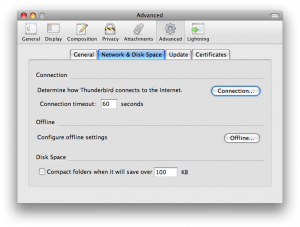
You can set Thunderbird to perform auto compact when it able to save certain file size. Just follow the steps below and your Thunderbird will perform auto compact when it meet your requirement:-
- Start your Thunderbird Email Client
- Click “Tools” -> “Options” -> “Advance” tab
- At the “Disk Space” area, check “Compact folders when it will save over 100 KB”
- You can change the 100 KB to your prefer file size
- Once finish, click on OK button
- Done, your Thunderbird will auto compact the email folder when it reach your criteria
Besides auto compact, you can also perform manual Compact whenever u like. Just follow the steps below to perform the manual compact:-
- Start your Thunderbird Email Client
- Under the left panel of All Folders, just right click on your desire Inbox folder and select “Compact”
- Wait until the Compact process finish and you can continue with your daily work
- Done, you just manually compact your email folder
*** Important Note: Do not perform any other task at your Thunderbird while compact process is running. This is to avoid any file corruption on your email account. ***

it wont delete any files and wont affect your current email.
but it will delete those email that has been deleted.
this will compact the original mailbox file size to be smaller.
this will help to reduce the crash rate of your mail client.
The whole article is lacking the most important information: what does the auto compact feature actually do to the existing email data? Does the auto compact feature delete any files, compress any files, move the files somewhere else?
Please provide more info.